[How To] Manually Upgrade to the latest Windows version on the End of Services Windows system
Answer
Windows version that reaches its end of updates will no longer receive security updates, or might not receive the notification message directing to get the latest version upgrade in Windows Update page.

In this case, users are still able to get the latest upgrade manually.
Take Windows 11 Version 22H2 (OS build 22621) as an example, October 8, 2024 was its end of updates date.
To get the latest Windows upgrade manually, follow the steps below to download the Windows Media Creation tool to manually upgrade to the latest Windows version.

(Ref: https://learn.microsoft.com/en-us/lifecycle/announcements/windows-11-22h2-end-of-updates-home-pro)
1. Visit Microsoft Download Page and select Download Windows 11 Disk Image (ISO) for x64 devices.
Download Link: www.microsoft.com/en-us/software-download/windows11?msockid=3b2e4aa775f2633c188a5fe574e262ac

2. Click Download Now, select the language that the system is using, and click Confirm.
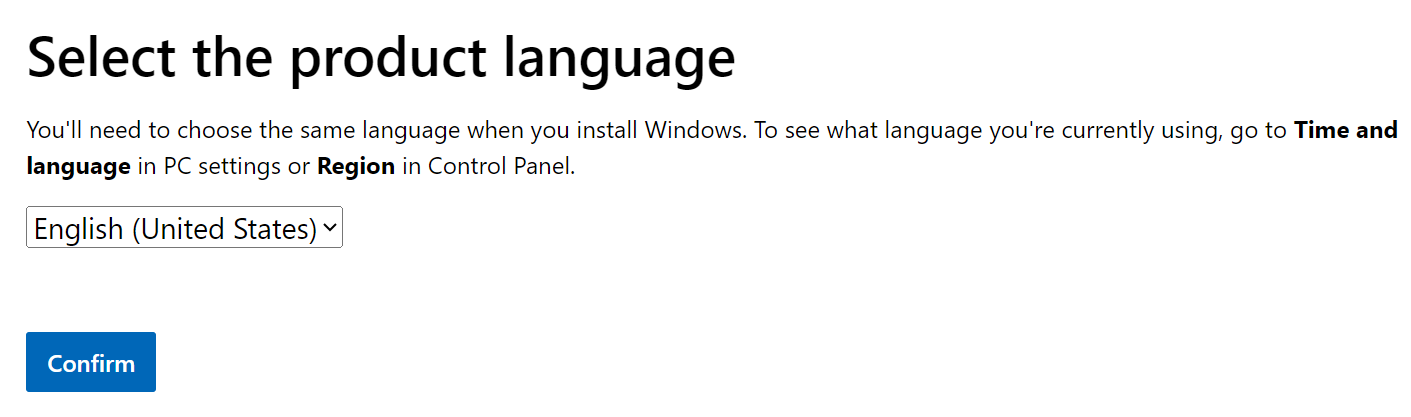
3. Click 64-Bit Download.

4. Double click Win11 24H2_x64.iso

5. Click Open

6. Right click setup.exe, and select Run as administrator.

7. Click Accept when it shows Applicable notices and license terms.
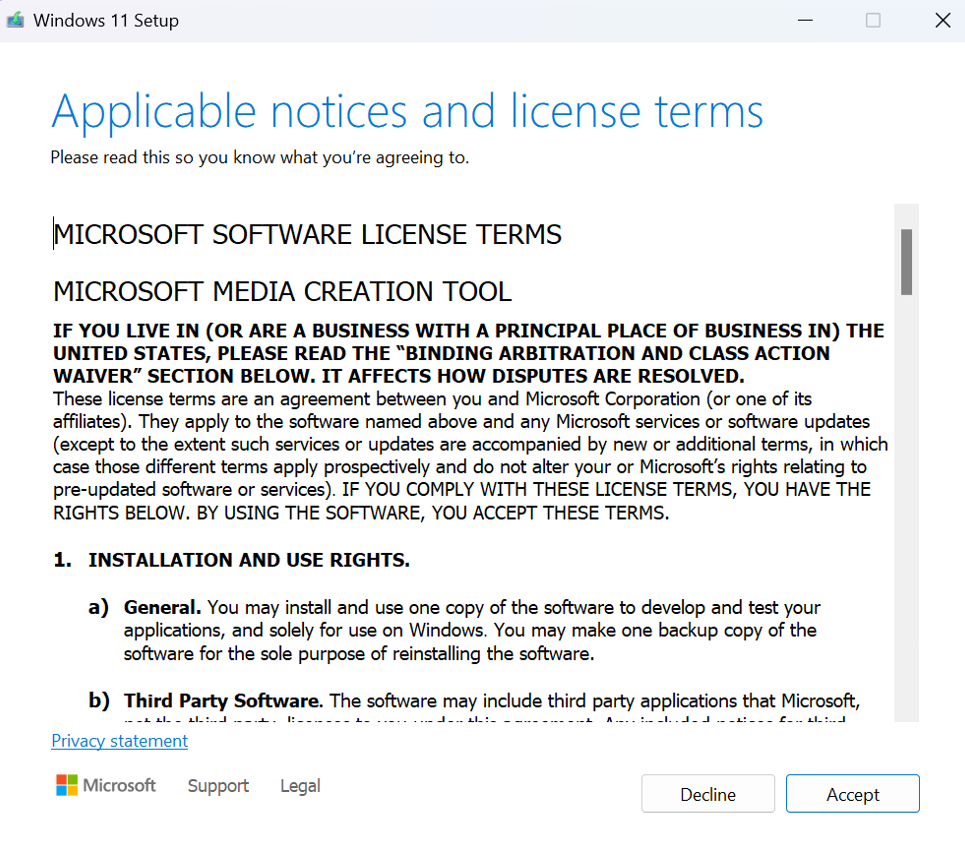
8. Click Install when it shows Ready to install.

9. After the installation progress finish, the system will reboot.
*Note. The installation progress may take few minutes, please keep the device on.